Availability
Chats are customized interfaces that allow users to have one-on-one conversations with specific LLM providers, tools, and data based on their needs. Access is tailored to the user’s Team, ensuring relevant and secure interactions.
This page covers the administrator’s perspective on configuring and managing Chat Rooms. For the user’s perspective on interacting with these chats, see the Chat Interface documentation.
Configuration
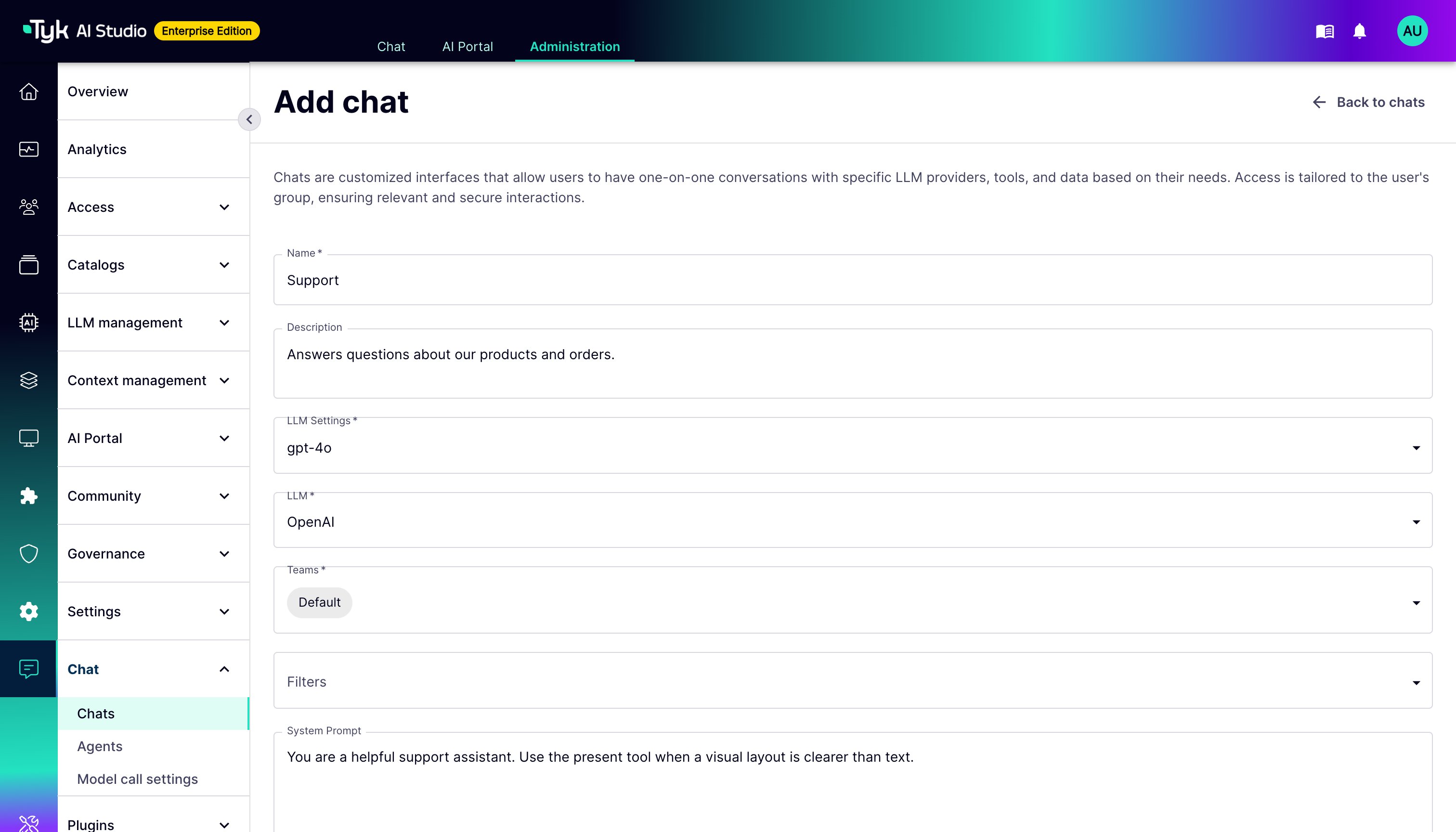
The Add/Edit Chat View enables administrators to configure a new or existing chat room. Below is an explanation of each field and its purpose:- Name: The name of the chat room.
- Description: A description for this chat room.
- LLM Settings: Select the model call settings. These control parameters like temperature and max tokens. For more details, see LLM Call Settings.
- LLM: The specific language model powering the chat (e.g., Anthropic Claude, OpenAI GPT).
- Teams: The Teams that can see and use the chat. Select at least one Team.
- Filters: Governance policies applied to the chat interactions.
- System Prompt: The guiding instructions for the LLM’s persona and behavior.
- Enable Tool Support: Toggles tool usage for the chat room.
- Default Tools: Select default tools that will be available in this chat room. These tools will be automatically accessible to the AI when responding to user queries. You can also select client tools, such as the built-in Generative UI tool. For more details, see Tools.
- RAG Results or Source to Include for Model: Configures vector database integration for context.
- Default Data Source: Setting a default data source will automatically include this vector database in all conversations in this chat room, allowing the model to reference its contents when generating responses. For more details, see Data Sources (RAG).
- Extra Context: Files that give additional context to the LLM in this chat room.
- Prompt Templates: Prompts that users can select when they start a new chat. Templates give guidance and structure for different types of conversations.
How to Create a Chat Room
- Navigate to Chat > Chats in the admin UI sidebar.
- Click Add chat.
- Fill in the required fields such as Name and configure the desired parameters like LLM and System Prompt.
-
Click Add chat to save the configuration.