

Availability
Users in Tyk AI Studio represent individuals who interact with the platform. They can be administrators managing the system or consumers accessing the AI Portal and chat interfaces.
Use cases
- Administrative Management: Super admins can create user accounts for other administrators to help manage AI Studio configurations, Teams, and Catalogs.
- Developer Access: Developers can be granted access to the AI Portal to consume LLM APIs using their generated API keys.
- End-User Chat: Non-technical users can be given access to the AI Chat interface to interact with approved LLMs and data sources safely.
Community vs Enterprise Edition
In the Community Edition, basic user management is available, and all users are automatically assigned to a single, built-in “Default” Team. In the Enterprise Edition, you can create multiple Teams, assign users to specific Teams for granular access control, and configure Single Sign-On (SSO) provisioning. Administrative access in the Enterprise Edition comes from roles. There are five system roles: Owner, Administrator, Editor, Viewer, and Auditor. You assign roles to users directly, or to the Teams that they belong to.What is a User?
A User in Tyk AI Studio is the fundamental identity for authentication and authorization. Each user has basic information (Name, Email, Password) and specific access flags. Users do not directly get assigned to AI resources (like LLMs or Data Sources). Instead, their access is governed by the Teams they belong to. When a user is added to a Team, they inherit access to all the Catalogs associated with that Team.The Initial User and User Types
The first user who registers becomes an administrator. AI Studio marks the email address of this user as verified. In the Community Edition, the Admin User switch controls access to the admin console. AI Studio describes each user with one of these types:
In the Enterprise Edition, roles control access to the admin console. The user form does not show the Admin User switch. The first user gets the Administrator role, and then the Owner role. Refer to The First User and Upgrades. The Show Portal and Show Chat switches still control access to the AI Portal and the Chat interface.
API Keys
A user can have one API Key. The key gives programmatic access to the AI Studio management APIs (the Admin API) and the AI Portal, with the full permissions of the user.- Only self-registered users get a key automatically. Users that an administrator creates, and users that SSO provisions, have no key until someone issues one.
- An administrator issues, regenerates, or revokes a key on the user’s detail page. The detail page also shows when the key was last used.
- A user can issue or revoke their own key from the account menu (My API key).
- AI Studio does not issue keys to SSO-provisioned users unless
ALLOW_SSO_USER_API_KEYS=true. Refer to SSO Users and API Keys. - Users without the
users:writepermission cannot see the API keys of other users. The API returnsapi_key_hintandhas_api_keyinstead of the key.
Configuration
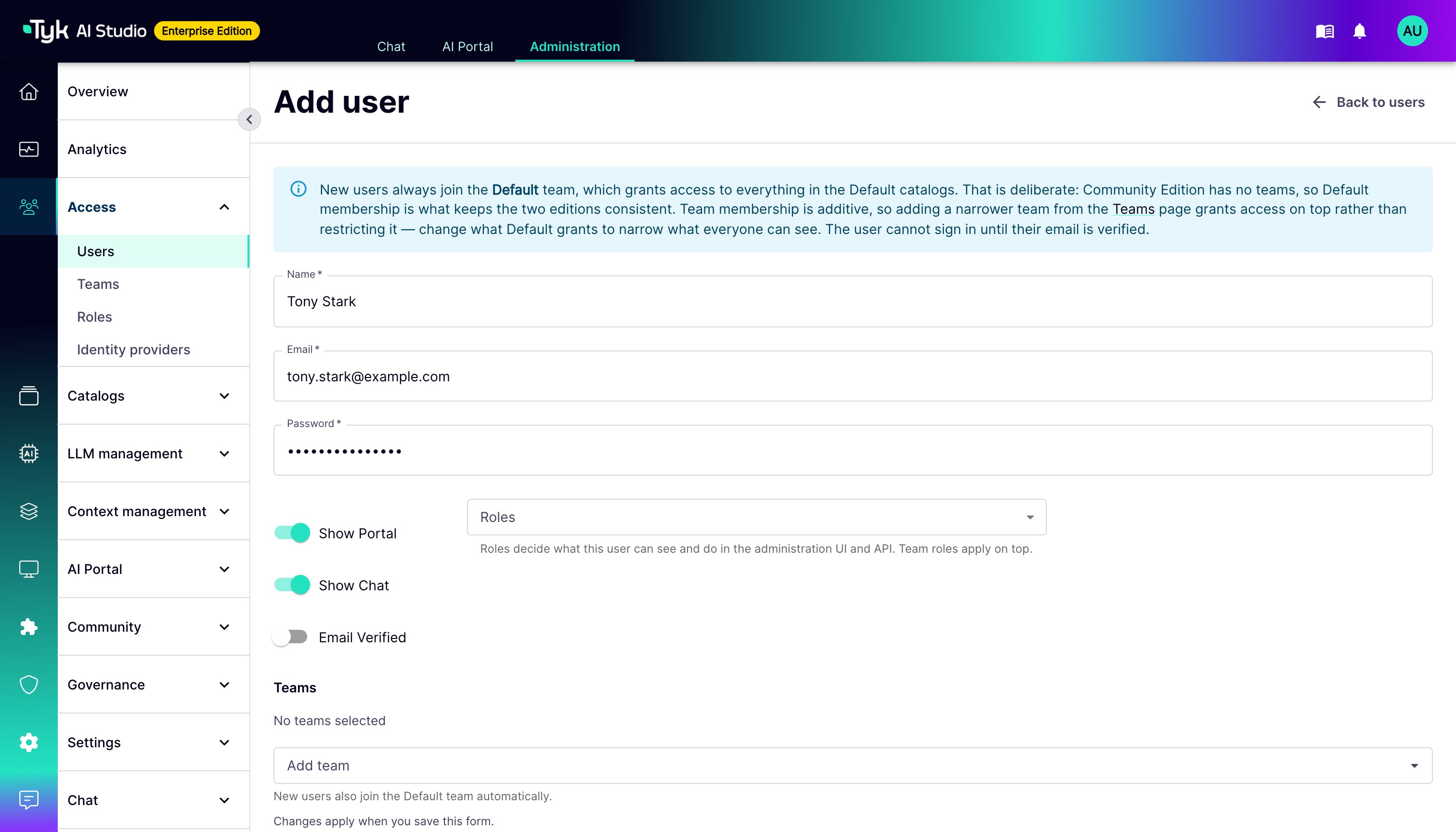
When configuring a User, the following options are available:- Name: The full name of the user.
- Email: The user’s email address, used for login.
- Password: The user’s password for authentication.
- Admin User (Community Edition): Grants the user administrative privileges to manage AI Studio. In the Enterprise Edition, this switch is not shown, because roles control administrative access.
- Show Portal: Grants the user access to the AI Portal interface.
- Show Chat: Grants the user access to the AI Chat interface.
- Email Verified: Indicates if the user’s email has been verified. A user cannot log in until their email is verified.
- Roles (Enterprise Edition): The roles that control what the user can see and do in the admin UI and API. Team roles apply in addition to these roles.
- Teams: The Teams that the user belongs to. New users also join the Default Team automatically.
- Budget team (Enterprise Edition): The Team that the spend of the user’s new Apps counts against. The form shows this field when the user belongs to more than one Team. The default is Automatic (first team other than Default). For users in more than one Team, select the budget team explicitly, so that the spend goes to the correct Team. Refer to Team Budgets.
How to Create a User
To create a new User in Tyk AI Studio:- Navigate to Access > Users in the admin UI sidebar.
- Click on the Add User button.
- Fill in the required basic information: Name, Email, and Password.
- Set the switches for the user, such as Show Portal and Show Chat. In the Community Edition, you can also set Admin User.
- Click Add User to create the user.
-
(Optional) After creation, open the user’s details to issue an API Key, or assign the user to Teams.
Users List
The Users list shows these columns for each user:- Name, Email, and Email Verified
- Origin: How the account was created. The values are Self-registered, Admin-created, and SSO (created on the first login through an identity provider). The origin does not change. A user who registered before you turned on SSO stays Self-registered, also when they log in through the identity provider.
- API key: Issued when the user has an API key, or None.
- Status: Active or Disabled.
- Is Admin (Community Edition) or Roles (Enterprise Edition): In the Enterprise Edition, the list shows direct roles and the roles that the user gets from Teams. A role from a Team has a “via team” badge.
- Actions: A menu to add the user to a Team, edit the user, disable or enable the user, or delete the user.
Disable a User
To stop all access for a user immediately, disable the user. Click the Actions menu of the user, then click Disable user. You can also click Disable user on the user’s detail page. A disabled user is refused everywhere: browser sessions, API key, password login, SSO login, OAuth tokens, and password reset. When you disable a user, AI Studio also does these steps:- It ends the user’s current session.
- It cancels any pending password reset.
- It deactivates the credentials of the Apps that the user owns.