

Availability
Tyk AI Studio includes a comprehensive system for managing users, their authentication methods, and controlling their access to platform resources using Teams and Role-Based Access Control (RBAC).
Purpose
The User Management & RBAC system provides administrators with the tools to:- Manage the lifecycle of user accounts.
- Define how users authenticate (UI sessions, API keys).
- Organize users into logical teams.
- Grant fine-grained access to Tyk AI Studio resources (LLMs, Tools, Data Sources, Chat Experiences) based on team membership.
- Assign platform-level permissions using roles.
Core Concepts
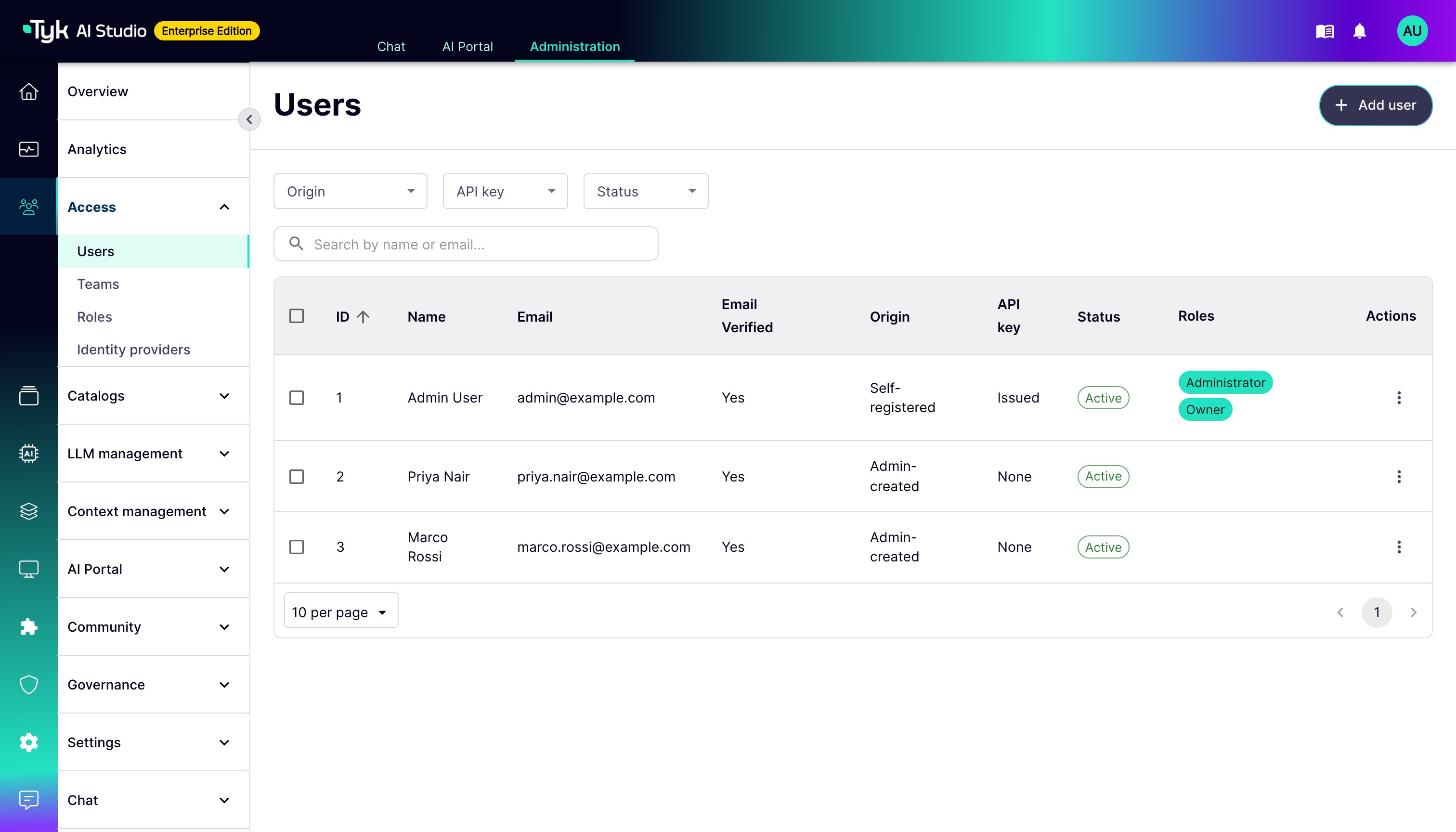
- User: Represents an individual interacting with Tyk AI Studio. Users are typically identified by an email address or username and can be created manually by administrators, via invitation, self-registration (if enabled), or provisioned through SSO Integration.
- Authentication: The process of verifying a user’s identity.
- Session-based: For users logging into the Tyk AI Studio UI (using username/password or SSO).
- API Key: For applications or scripts interacting with Tyk AI Studio APIs (like the Proxy).
- API Key: A unique, long-lived token for a user. Applications send this key in an
Authorization: Bearer <key>header. The requests then have the full permissions of that user. Only self-registered users get a key automatically. Users that an administrator creates, and users that SSO provisions, have no key until an administrator issues one. - Origin: Each user records how the account was created: Self-registered, Admin-created, or SSO. The Users list shows the origin, and you can filter on it.
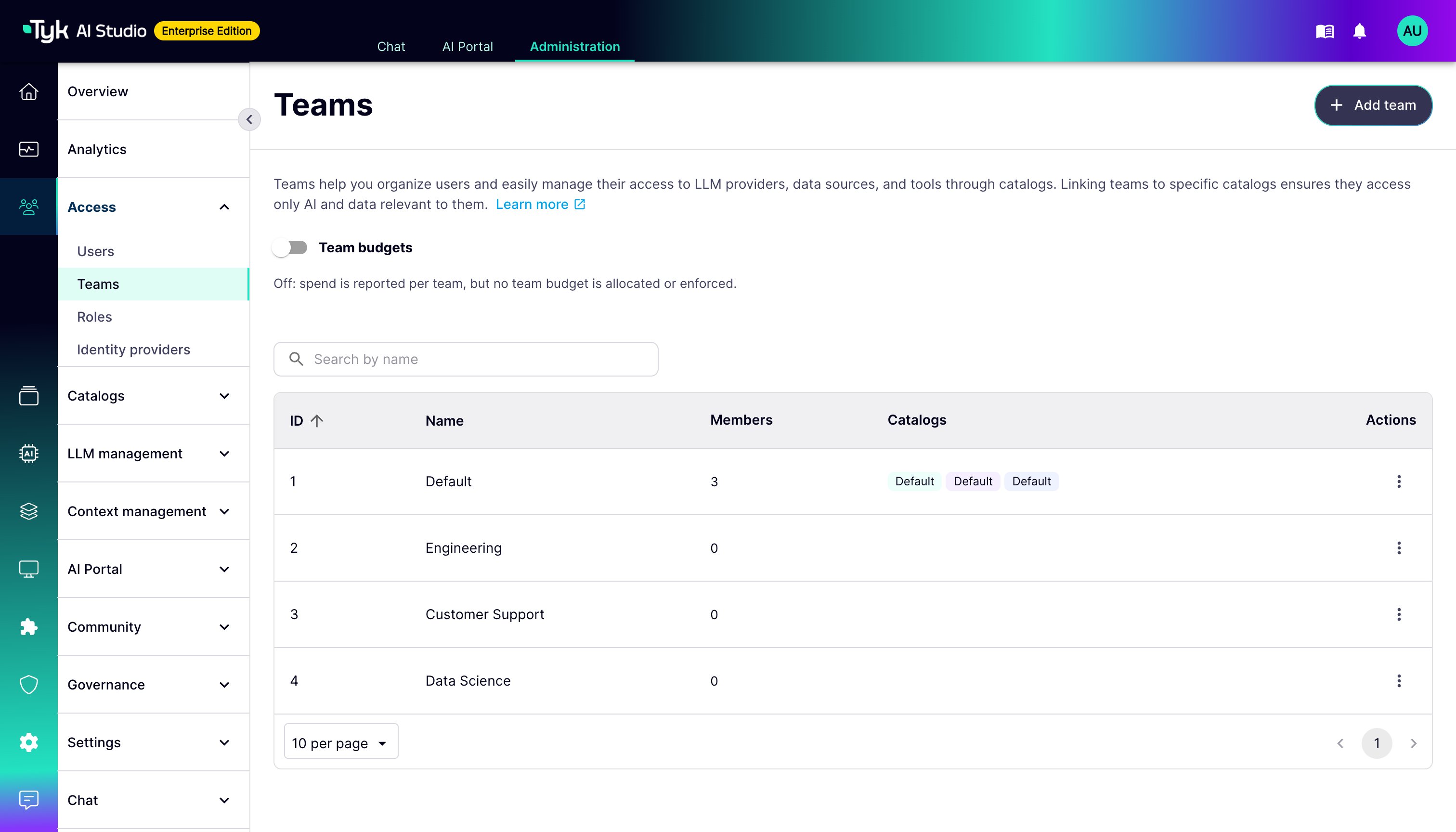
- Team: A collection of users. Teams are the primary mechanism for assigning access rights to resources. A user can belong to multiple teams.
- Resource: Any entity within Tyk AI Studio whose access needs to be controlled. This includes:
- LLM Configurations
- Tool Catalogues (collections of Tools)
- Data Source Catalogues (collections of Data Sources)
- Chat Experiences (configurations for the Chat Interface)
- Role: Defines a set of platform-level permissions.
- In the Community Edition, a user is an admin or a standard user. Admins have full access to configure and manage the platform. Standard users can use the resources that their Teams give them.
- In the Enterprise Edition, roles are fine-grained. Each role is a list of permissions, in the form
resource:action. There are five system roles: Owner, Administrator, Editor, Viewer, and Auditor. You can also create custom roles. You assign roles to users and to Teams. A user has the permissions of all their direct roles and Team roles. Refer to Roles and Permissions.
- RBAC (Role-Based Access Control): Tyk AI Studio’s access control model. Access is granted primarily by assigning resource access to Teams, and then adding Users to those Teams. Roles provide overarching platform permissions.
- User Entitlements: The complete set of permissions a specific user has at any given time. This is calculated based on their assigned Role and the combined permissions granted through all the Teams they belong to. Systems like the Proxy check these entitlements before allowing an action.
User Lifecycle Management (Admin)
Administrators manage users via the UI or API:- Creation: Create user accounts manually, send invitations, or manage users provisioned via SSO.
- Team Assignment: Add or remove users from various Teams.
- Role Assignment: In the Community Edition, set the Admin User switch. In the Enterprise Edition, assign roles to the user or to their Teams.
- Status Management: Disable or enable user accounts. A disabled user is refused everywhere, and the credentials of the Apps that the user owns are deactivated. Refer to Disable a User.
-
API Key Management: Issue, regenerate, or revoke the API key of a user on the user’s detail page. The detail page shows when the key was last used.
Team Management (Admin)
Teams are central to managing permissions:- Creation/Deletion: Create and manage teams (e.g., “Developers”, “Sales Team”, “Product Docs Users”).
- User Assignment: Add/remove users from teams.
-
Resource Assignment: Grant access to specific LLM Configurations, Tool Catalogues, or Data Source Catalogues to the team. Any user in that team inherits this access.
Authentication Methods
- UI Login: Users access the web interface by logging in with their credentials (username/password) or via a configured SSO Provider. This establishes a browser session.
- A user has one browser session at a time. A login from a second browser, device, or private window replaces the session. The first browser is then signed out on its next request. Tabs in the same browser share the session. The session length is
SESSION_DURATION(default6h).
- A user has one browser session at a time. A login from a second browser, device, or private window replaces the session. The first browser is then signed out on its next request. Tabs in the same browser share the session. The session length is
- API Key Authentication:
- An administrator issues an API Key on the user’s detail page. Users can also issue their own key from the account menu (My API key). Self-registered users get a key automatically.
- The user securely provides this key to their application or script.
- The application includes the key in the
Authorizationheader for requests to Tyk AI Studio APIs: - Tyk AI Studio validates the key and associates the request with its user. AI Studio refuses the key if the user is disabled. AI Studio also refuses the key of an SSO user without a recent identity provider login. The period is
SSO_API_KEY_LIVENESS. - In the Enterprise Edition, the audit trail records if each action used a browser session or an API key (
auth_method).
Access Control Flow Example (API Request)
When an application makes a request to the Proxy using an API Key:- Key Validation: Tyk AI Studio validates the API Key.
- User Identification: The system identifies the User associated with the key.
- Team Membership: The system determines all Teams the User belongs to.
- Resource Check: The request targets a specific resource (e.g., an LLM Configuration via its
routeId). - Permission Verification: Tyk AI Studio checks if any of the user’s Teams have been granted access to the requested resource.
- Entitlement Check: Additional checks based on the user’s Role and specific entitlements might occur (e.g., budget checks, model restrictions).
- Access Granted/Denied: If all checks pass, the request proceeds; otherwise, it’s denied (e.g., 401 Unauthorized or 403 Forbidden).