

Availability
Tyk AI Studio provides a centralized system for managing Large Language Model (LLM) providers, models, associated costs, and usage budgets. This allows administrators to control which models are available, how they are used, and track associated expenses.
Use cases
- Centralized AI Access Control: Manage all your organization’s LLM connections (OpenAI, Anthropic, etc.) in one place, controlling which teams and applications can access specific models.
- Cost Management and Budgeting: Set monthly spending limits globally per LLM or per application to prevent unexpected AI costs and track usage against budgets.
- Data Privacy Enforcement: Assign privacy levels to LLMs to ensure sensitive data is only processed by approved, secure models, preventing data leaks to public LLMs.
LLM Provider
The LLM Management system acts as the core registry for all AI models accessible through Tyk AI Studio. It bridges the gap between external AI providers and internal consumers (Applications and Chat). Key components of an LLM entity include:- Basic Info: Name, descriptions, vendor, and active status.
- Connection: API credentials, endpoints, and the default model to use.
- Access & Security: Privacy scores, allowed model regex patterns, and namespace restrictions.
- Budgeting: Monthly spending limits and budget cycle start dates.
- Failover: An ordered list of fallback LLMs that the gateway tries when the upstream of this LLM fails.
- Extensibility: Support for attaching plugins that execute in the AI Gateway during the request lifecycle.
Configuration
Administrators can configure connections to different LLM providers through the UI or API. The configuration includes:- Vendor Selection: Choose from supported vendors such as
openai,anthropic,bedrock(AWS Bedrock, available from v2.1.0),vertex(Google Vertex AI),google_ai,huggingface,ollama. - Authentication: Securely provide API keys or credentials.
- Model Restrictions: Use regex patterns (e.g.,
gpt-4.*) to whitelist specific models from a vendor. - Privacy Levels: Define how data is protected by controlling LLM access based on its sensitivity. Refer to Privacy Levels.
- Budget Control: Set a monthly budget to limit total spending across all applications using this LLM configuration. No limit and $0 are different. Refer to Budget Control.
- Failover: Add fallback LLMs for the gateway to try when this LLM’s upstream fails. Refer to Failover.
- Body Logging Control: From v2.1.0, enable Disable Request/Response Body Logging (
dont_log_bodies) to clear request and response bodies before they are stored in proxy logs, chat logs, and analytics events. Use this for privacy or compliance-sensitive providers. It applies on both the embedded gateway and Edge Gateways, and defaults to off. - Plugins: Attach plugins that execute in the AI Gateway when a request flows through the REST endpoint.
- Authentication Plugins: From v2.2.1, attach an ordered list of auth plugins to the LLM on its detail page. When the list is not empty, only these plugins authenticate requests to the LLM on Edge Gateways. The Edge Gateways refuse App keys for this LLM. Refer to Edge Gateway Plugins. To authenticate machine clients with tokens from your identity provider, refer to OAuth2 Client Credentials.
How to Create a LLM Provider
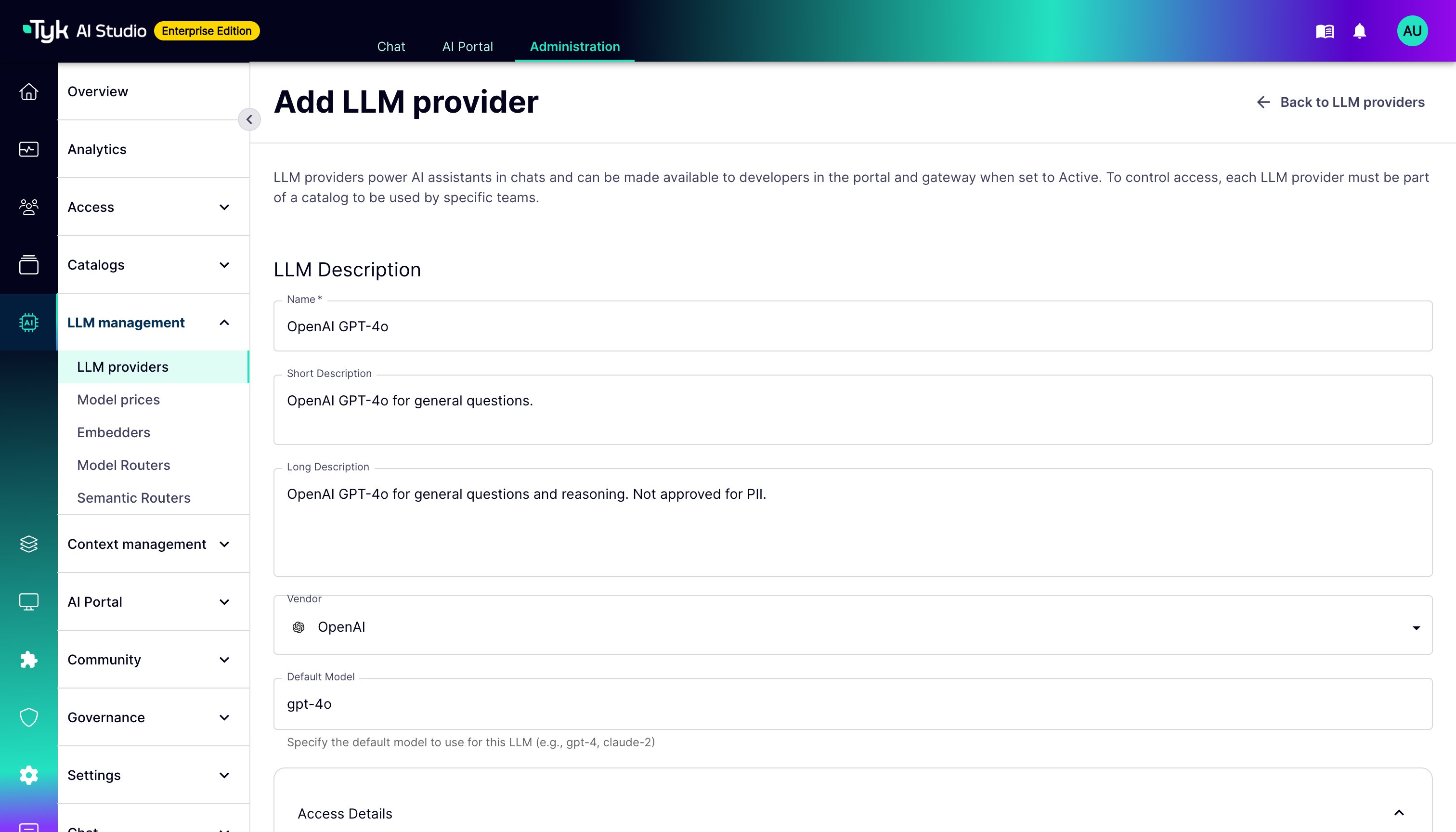
You can create and manage LLM providers through the Tyk AI Studio Admin UI.- Navigate: Go to the LLM providers section in the Admin UI. This view lists all configured LLMs, showing their Name, Short Description, Vendor, Privacy Level, and whether they are Proxied.
- Add New LLM: Click “Add LLM provider”.
-
Fill in the LLM Details:
- Name: A user-friendly name for this configuration (Required).
- Short/Long Description: Provide descriptions for the LLM.
- Vendor: Select the LLM vendor (e.g., OpenAI, Anthropic).
- Default Model: Specify the default model to use for this LLM (e.g.,
gpt-4,claude-2). - Monthly budget: Select No limit or Fixed amount, and set a Budget Start Date. A fixed amount of $0 blocks all requests.
- Privacy levels: Select a level (Public, Internal, Confidential, or Restricted) or enter a score from 0 to 100. LLMs with lower privacy levels can’t access higher-level data sources and tools.
- Allowed Models: Add regex patterns to whitelist specific models (e.g.,
gpt-4.*for all GPT-4 models). - In the Access Details section,
- API Endpoint: Provide the endpoint URL (required if enabling an LLM for the AI Gateway, even for providers with default URLs).
- API Key: Securely provide the necessary authentication credentials.
- For AWS Bedrock (from v2.1.0), the form instead shows labelled credential fields: AWS Access Key ID, AWS Secret Access Key, and AWS Session Token (optional). These are stored in the LLM’s
metadatamap rather thanAPIKey. Use$SECRET/NAMEreferences in these fields to keep credentials encrypted at rest via the Secrets manager.
- In the Portal Display Information section,
- Logo URL: Configure the logo used in the AI Portal for end-users.
- Active: Set the LLM to active to use it in the proxy. For example, you must activate the LLM before you create an App that uses it.
- Disable Request/Response Body Logging: From v2.1.0, when enabled, request and response bodies are not stored in proxy logs, chat logs, or analytics events for this LLM.
- Plugins: Select plugins to attach to this LLM. They execute in the order selected during the request lifecycle.
- Available Namespaces: Select which edge namespaces this configuration should be available to (leave empty for global availability).
- Failover: (Optional) Add fallback LLMs. Refer to Failover.
-
Save: Save the configuration to make the LLM provider available.
Failover
Each LLM provider can have a failover waterfall. This is an ordered list of fallback LLM providers, each with the model to use on that provider. When the upstream of the provider fails, the gateway sends the same request to each fallback in turn before it returns an error. An outage at one vendor then does not become an outage for your Apps. Failover is available in the Community Edition and the Enterprise Edition.Configure a Failover Waterfall
- Open the LLM provider and go to the Failover section of the edit form.
- Click Add fallback and select a Fallback LLM.
- Select the Model to use on that LLM. The model must be one of the allowed models of that LLM. If the LLM has no allowed models, you can select any model.
- To change the order of the fallbacks, use the arrows. The gateway tries the first fallback first.
- Save the LLM provider.
- A fallback must be active. It must not be the provider itself. The same LLM and model pair cannot be in the list two times.
- A fallback must have a privacy level that is equal to or higher than the provider’s level. It must be in the same namespace as the provider, or be global.
- A provider can have a maximum of 10 fallbacks.
- You cannot delete a provider while the waterfall of another provider contains it.
Access to Fallbacks
Apps that have a grant for a provider can use its fallbacks when the provider fails. They do not need a grant for the fallbacks. The gateway still applies the budget of the fallback provider.Each fallback attempt goes through the gateway again. AI Studio calculates its cost from the model prices of the fallback. The cost counts against the App budget and the budget of the fallback LLM. Before you add a fallback, compare its model prices and its budget with the primary. A more expensive fallback increases costs during an outage. A fallback with a low budget can refuse requests when the primary fails.
When Failover Occurs
By default, the gateway tries the next fallback when one of these conditions occurs:- The upstream returns
408,429,500,502,503, or504. - The attempt times out.
- The gateway cannot connect to the upstream.
- Remove status codes from the list. You can add only 5xx codes,
408, and429. Other 4xx responses are caller or configuration errors, and every fallback would return the same error. - Turn off Fail over when the upstream times out or Fail over when the upstream cannot be reached.
- Set a Per-attempt timeout (seconds), so that a primary that does not respond does not use all the time of the request.
401 or 403 from the upstream never causes failover. These codes show that the credentials or configuration of the provider are wrong. The gateway returns the error to the caller.
Response Headers
The
model field in the response body is the model that answered. If all the fallbacks fail, the gateway returns the error from the last fallback.
Scope and Limits
- Failover applies to the OpenAI-compatible chat endpoints:
/ai/{llmSlug}/v1/chat/completions, the Main Ingress/v1/chat/completions, and Model Routers. It does not apply to the vendor-native endpoints, the Anthropic Messages endpoint, or chat sessions. Refer to Endpoints. - A streamed response can fail over only before the gateway sends the first token. After that, the request stays with the provider that started the stream.
- The gateway uses only the waterfall of the provider that the request was sent to. It does not use the waterfall of a fallback.
- Edge Gateways receive the waterfall with their configuration, and fail over in the same way.
Failover in Analytics
The proxy logs record every attempt that gets an answer from its upstream. For example, a request that fails over because of a status code has one failed row for the provider and one row for the fallback that answered. An attempt that the gateway cancels because of the per-attempt timeout or a connection error has no row. Only the row of the fallback appears.- The LLM and App detail pages show a Failover column in the proxy logs.
- The proxy-log endpoints (
/analytics/proxy-logs-for-llmand/analytics/proxy-logs-for-app) returnfailover_attemptandfailover_from_llm_id.failover_attemptis0for the primary attempt, and1or more for each fallback.failover_from_llm_idis the provider that the request failed over from. It is not present on primary rows. - To count requests, filter on
failover_attempt = 0, because each fallback attempt is a row of its own. - The
aistudio_llm_failover_totalmetric counts each failover by source, target, and reason.
AI Portal Visibility
In the Community Edition, AI Studio adds a new LLM provider to the Default catalog when you save it. In the Enterprise Edition, AI Studio does not do this. The provider is not visible in the AI Portal until you add it to a catalog that the correct Teams have. Refer to Catalogs.Find the Apps That Use a Model
When a vendor deprecates a model, you must find the Apps that still use it. The LLM provider detail page shows this information.- Go to LLM management > LLM providers and open the provider.
- Below the usage charts, find the Models in use table. It lists every model that the provider served in the selected date range. Each row shows:
- Requests and Apps: the number of calls, and the number of different Apps that made them
- Last used: the time of the most recent call
- Total cost and the token totals
- To sort the table, click a column header. The default order is most recently used first. To change the period, use the date range picker above the table.
- To see the details of a model, click its name. The model detail page shows token and cost charts for that model. It also shows the Apps using this model table, with the owner email, requests, tokens, cost, and the first and last use of each App in the period.
- AI Studio records the model name from the vendor’s response. For this reason, an alias such as
gpt-4oshows as the snapshot it resolved to, for examplegpt-4o-2024-08-06. - The view shows only the traffic of the provider that you opened. If two providers use the same model name, each provider shows only its own traffic.
- The view includes requests through Edge Gateways. Edge requests without a model name show as
unknown-model. - Last used is limited to the selected date range. An App with a most recent call before the start of the range is not in the list until you make the range wider.
- The view includes chat traffic and proxy traffic.
start_date and end_date in the format YYYY-MM-DD.